About this product
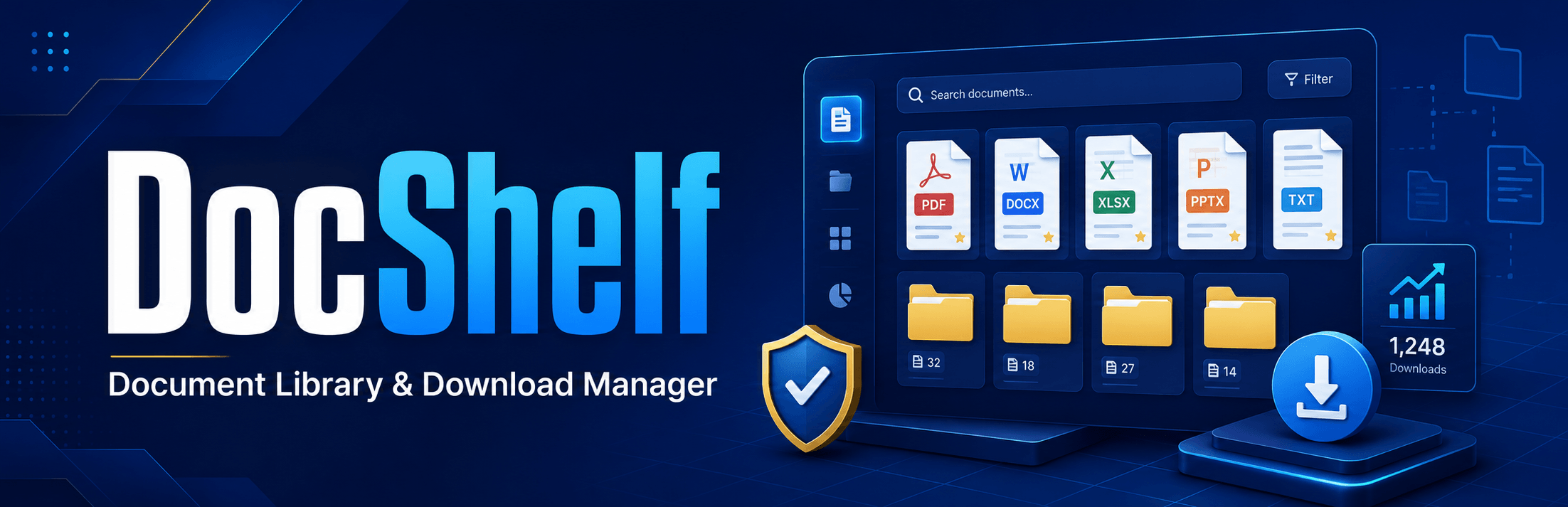
DocShelf is a lightweight, secure and SEO-friendly WordPress document management plugin for organising, displaying and tracking downloadable documents.
It is suitable for publications, reports, policies, strategic plans, research papers, manuals, presentations, books, newsletters, forms and other organisational documents.
Only the document title and file are required. Administrators can optionally add a cover image, document type, categories, authors, description and featured status.
DocShelf provides flexible grid, list, table and minimal layouts. Cover images can appear above, beside or be hidden from document cards. Listings include automatic file-size detection, download totals, filtering and intelligent pagination based on the configured columns and rows.
Every document receives a dedicated, indexable information page with structured metadata, document information and a controlled download button. This helps visitors discover documents through search engines while preventing direct download endpoints from being indexed.
DocShelf also provides migration tools for Download Monitor and WP Download Manager, helping website owners retain files, document information, legacy links and existing download totals.
Who is DocShelf for?
DocShelf is suitable for:
- Universities and research institutions
- Researchers and academic authors
- Government agencies
- Companies and professional organisations
- Non-governmental organisations
- Libraries and publication repositories
- Project and programme websites
- Consultants and training institutions
- Anyone publishing downloadable resources through WordPress
How to use DocShelf
1. Install the plugin
- Download the DocShelf ZIP file.
- Open the WordPress administration dashboard.
- Go to Plugins → Add New Plugin.
- Select Upload Plugin.
- Upload the DocShelf ZIP file.
- Click Install Now.
- Activate DocShelf.
Updating with a newer ZIP replaces the plugin files while retaining documents, categories, download totals and settings.
2. Configure the plugin
Go to DocShelf → Settings.
The settings page is organised into the following sections:
- Cover Images
- Download Counting
- Document Overviews
- Document Type Ordering
- Default-Type Recovery
You can configure separate default covers for top-image and side-image layouts.
3. Add a document
Go to DocShelf → Add New.
Provide:
- Document title – required
- Document file – required
- Document type – optional
- Categories – optional
- Authors – optional
- Cover image – optional
- Document overview – optional
- Featured status – optional
The file format and file size are detected automatically.
Display documents
Go to DocShelf → Display Builder to generate a shortcode.
Standard grid
[docshelf source="all" layout="grid" image_position="top" columns="3" rows="4"]This displays 12 documents per page because pagination is calculated as three columns multiplied by four rows.
Grid with images on the left
[docshelf source="all" layout="grid" image_position="left" columns="3" rows="3"]Grid with images on the right
[docshelf source="all" layout="grid" image_position="right" columns="3" rows="3"]Listing without images
[docshelf source="all" layout="grid" image_position="none" columns="3" rows="4"]Latest documents without search
[docshelf source="latest" layout="grid" image_position="left" columns="3" rows="2" show_search="no" show_filters="no" pagination="no"]Featured documents for a homepage
[docshelf source="featured" layout="grid" image_position="top" columns="4" rows="1" show_search="no" show_filters="no" pagination="no"]Most downloaded documents
[docshelf source="popular" layout="grid" image_position="top" columns="3" rows="2"]Add the shortcode to a page, post, widget or Elementor Shortcode widget.
Migrate from another plugin
Go to DocShelf → Migration.
DocShelf supports migration from:
- Download Monitor
- WP Download Manager
Before migration:
- Back up the database and uploads directory.
- Keep the original download plugin active.
- Run the migration.
- Verify imported files and counts.
- Test old download links.
- Replace old shortcodes.
- Deactivate the previous plugin.
- Test again before deleting it.
Migration can be run again safely because imported records are matched using their saved legacy identifiers.
About the developer
DocShelf is developed and maintained by Tumusiime Robert, a technology and e-learning professional specialising in WordPress, digital platforms, learning management systems and institutional technology solutions.
Key features
- Simple document management with only the title and file required
- Automatic file-type and file-size detection
- Grid, list, table and minimal display layouts
- Top, left, right or hidden cover-image positions
- Configurable columns, rows and intelligent pagination
- Responsive design with theme-colour integration
- Dedicated, sidebar-free document information pages
- Secure downloads with reliable download counting
- Bot and repeat-download count protection
- Search, category and document-type filtering
- Featured, latest and most-downloaded document displays
- Ordered document-type dropdown with custom type support
- Bulk document-type assignment and auto-detection
- Bulk category creation with duplicate protection
- Categories, authors, tags and featured-document support
- Separate default covers for top and side layouts
- Safe document replacement while retaining URLs and download counts
- Two-paragraph overview extraction from supported documents
- Review-first and optional automatic overview generation
- SEO-friendly URLs, metadata and DigitalDocument structured data
- Native WordPress XML sitemap and canonical URL support
- Non-indexable download endpoints
- Download Monitor and WP Download Manager migration
- Legacy-link and existing download-count preservation
- Elementor-compatible shortcode builder
- WordPress capability checks, nonces, sanitisation and output escaping
- PHP 7.4 and current PHP 8.x compatibility
Changelog
Added a secure Bulk Add Categories screen.
Added a ready-to-edit recommended category list.
Added duplicate-category protection.
Added automatic category-slug generation.
Added permission and nonce safeguards.
Added entry-length and batch-size limits.
Added created, skipped and failed result totals.
Version 1.3.2
Replaced the free-typing document-type interface with an ordered dropdown.
Enforced one optional document type per document.
Preserved existing document-type assignments.
Added automatic inclusion of custom document types.
Added a direct document-type management link for authorised administrators.
Version 1.3.1
Added bulk document-type auto-detection.
Added detection using document titles, filenames and existing categories.
Preserved existing type assignments during detection.
Added assigned, uncertain and preserved result totals.
Professionally reorganised the settings page.
Added responsive settings cards and clearer administration sections.
Version 1.3.0
Added 15 ordered default document types.
Added restoration of missing default types.
Added document-type descriptions.
Added administrator-controlled type ordering.
Added document-type filtering to public listings.
Added bulk actions for setting and removing types.
Added title-based type classification during migration.
Clarified safe document-file replacement.
Strengthened overview file-signature validation.
Improved PDF decompression compatibility.
Improved Unicode word detection.
Improved extraction retry handling after file replacement.
Version 1.2.1
Fixed left and right image positions within grid cards.
Preserved grid columns, rows and pagination across image positions.
Added responsive side-cover sizing.
Version 1.2.0
Added document-overview extraction.
Added review-first overview generation.
Added optional automatic generation.
Added bulk generation for missing overviews.
Added extraction limits and safe failure handling.
Added local file and document-format validation.
Version 1.1.1
Improved the single-document page.
Moved the title above the two-column layout.
Limited the title to a maximum of 40 pixels.
Added spacing below the document content.
Reduced and polished cover-image presentation.
Improved metadata visibility and theme-colour adoption.
Version 1.1.0
Added WP Download Manager migration.
Added dedicated sidebar-free document pages.
Added document information and download sidebar.
Improved listing typography and metadata.
Removed listing excerpts by default.
Improved active pagination styling.
Enhanced structured data and search-engine metadata.
Version 1.0.0
Initial DocShelf release.
Added document custom post type.
Added categories, types and authors.
Added secure document downloads.
Added download counting and repeat protection.
Added flexible grid, list, table and minimal layouts.
Added top, left, right and hidden image positions.
Added responsive pagination.
Added featured, latest and popular shortcodes.
Added Download Monitor migration.
Added initial SEO and structured-data support.
User reviews
There are no written reviews yet. You can be the first to share one using the review form.
Rate this product
Share an honest rating. Reviews are moderated before publication.